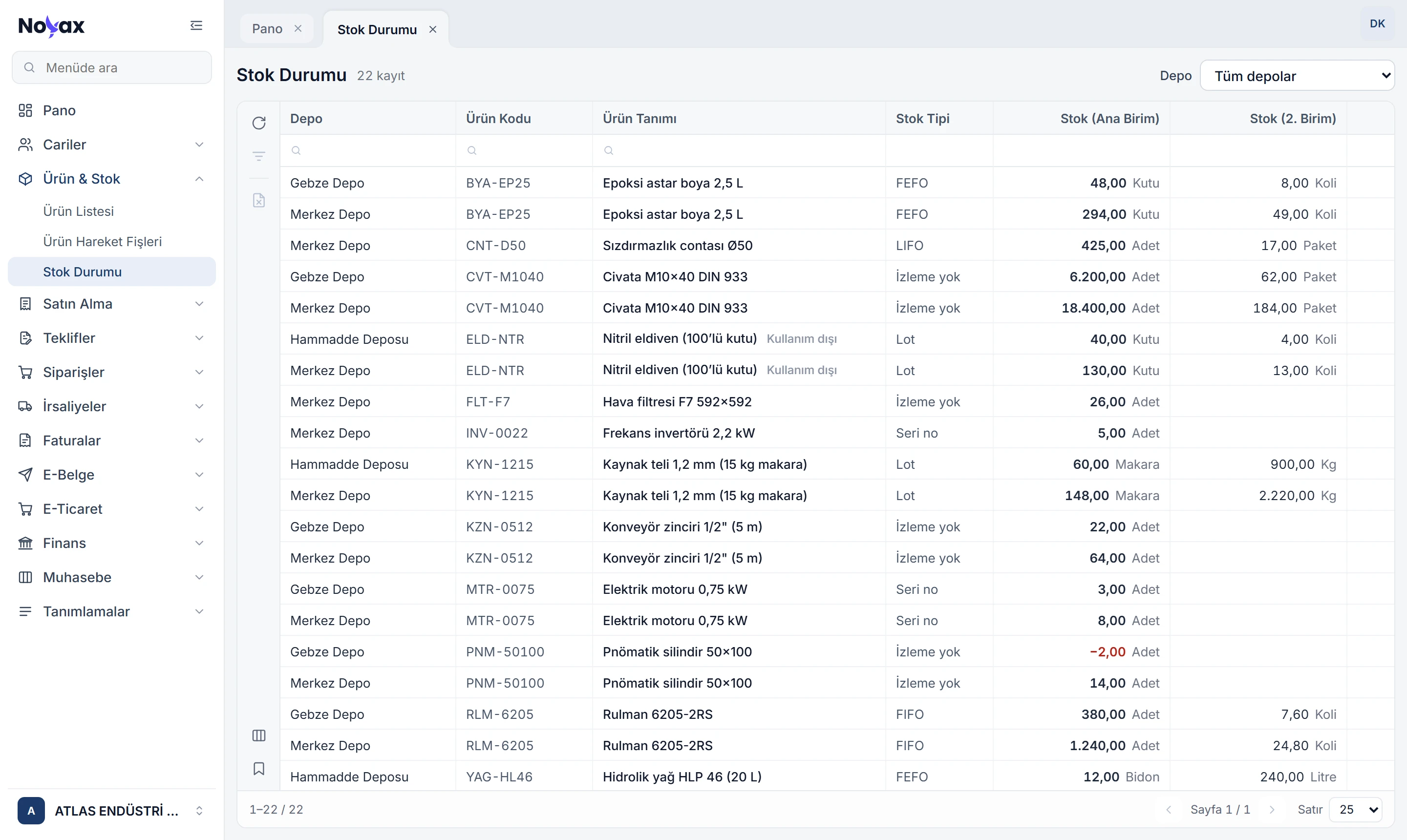
Stock tracking down to the lot, the shelf and the serial number

See instantly how much of each product sits in which warehouse, on which shelf and in which lot. Track by lot and serial number, ship the soonest-expiring stock first and stop a voucher when stock gets critical.

Included from Pro. Details

Stock status list in Noyax: each product’s stock in each warehouse, its tracking method (FEFO, FIFO, Lot, Serial no) and the quantity in its first, second and third unit

Which lot goes out first?

For a lot-tracked product, lots are allocated automatically by rule when you save an exit voucher. Change the rule and the quantity to see which lots the same exit comes from.

Lot no Entry date Expiry Remaining Exit After exit
LOT003117 23/08/2026 23/03/2027 18 18
LOT003120 19/09/2026 16/12/2026 47 −47 0
LOT003123 16/10/2026 01/06/2027 79 79
LOT003126 12/11/2026 22/01/2027 150 −73 77

Every lot’s entry, expiry and remainder

For a lot-tracked product, each lot in each warehouse has its own row: entry date, expiry, quantity received, remainder and the supplier’s lot number. One switch adds the used-up lots to the list.

  • Lot numbers are suggested from a series and are unique in the company.
  • With FEFO, the expiry date is required.
  • Scan a lot barcode and a window shows its remainder and expiry.
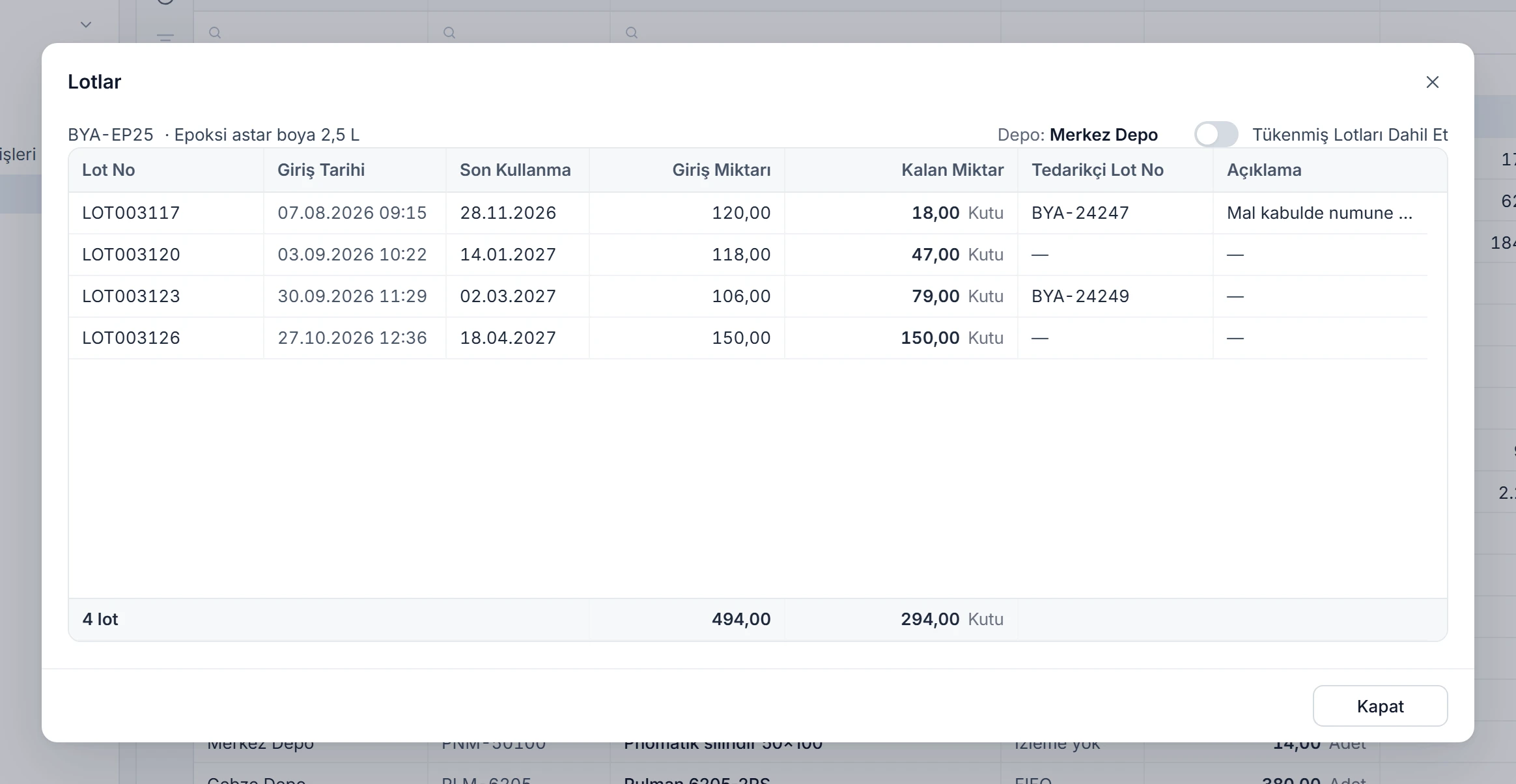
Lots window: four lots of epoxy primer in the main warehouse with entry dates, expiry dates, quantities received and remainders Enlarge image

All of a product’s movements in one statement

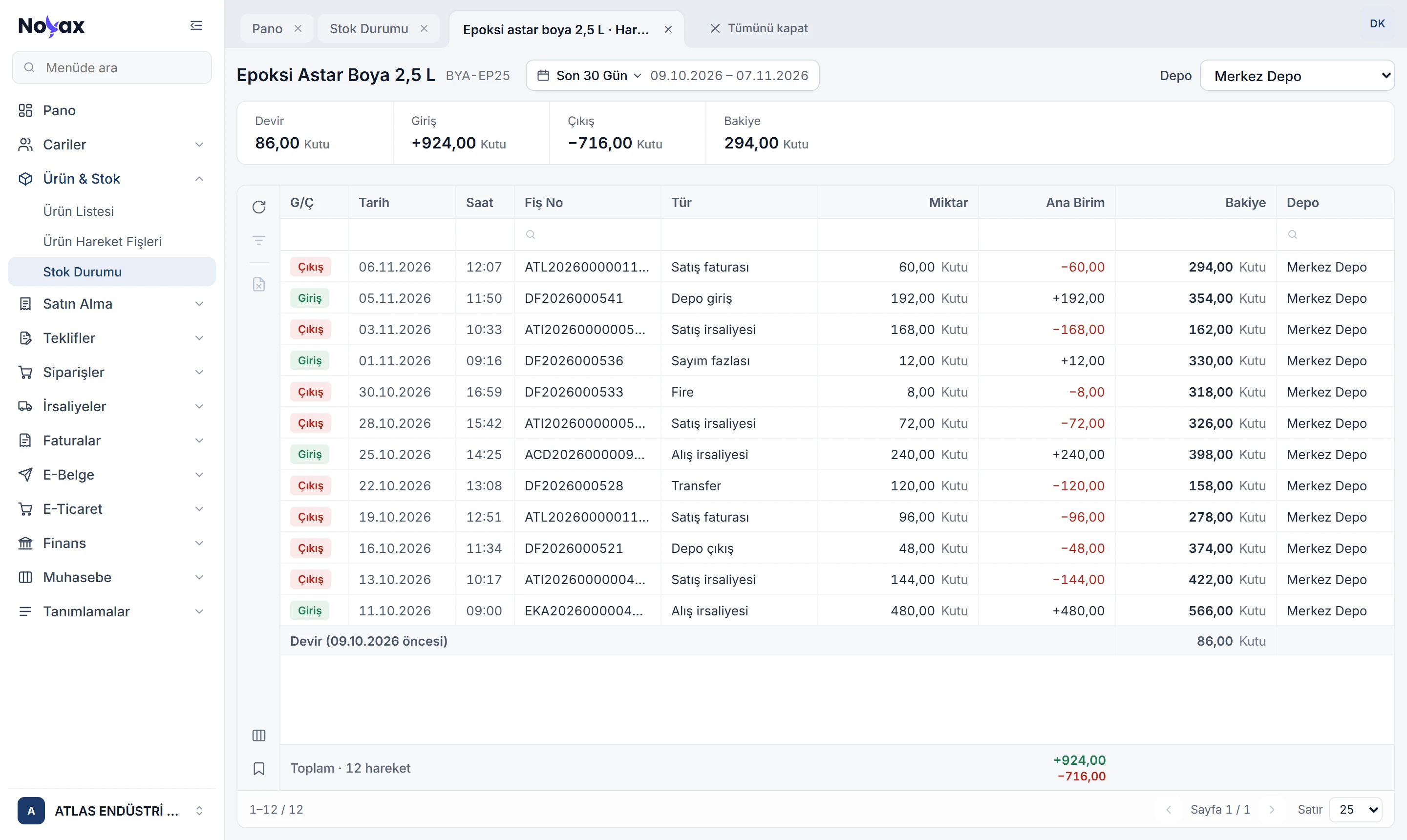
The product movement statement starts with the opening balance; every entry and exit shows the running balance next to it. Delivery notes, invoices, transfers, counts and waste are in one list, each with its type.

  • Opening, entries, exits and balance at a glance at the top.
  • Transfers show the other warehouse, sales show the customer.
  • Double-click a row to open the voucher or invoice.
Product movement statement: opening, entries, exits and balance; each movement with an entry or exit tag, voucher number, type, quantity and running balance Enlarge image

Low-stock rules stop the voucher

Define negative, minimum and maximum stock rules per product and warehouse and choose continue, warn or stop for each. The rules are checked when a voucher is saved.

  • If the rule says “Warn”

    Saving hit the low-stock warnings below. Save anyway?

  • If the rule says “Stop”

    The voucher cannot be saved because of the low-stock rules below; no line was written.

  • If the lots are not enough

    Not enough quantity in the lots: 26 boxes cannot be covered; the voucher cannot be saved as it is.

  • If two saves hit the same product at once

    Another save for the products on this voucher is in progress; try again in a few seconds.

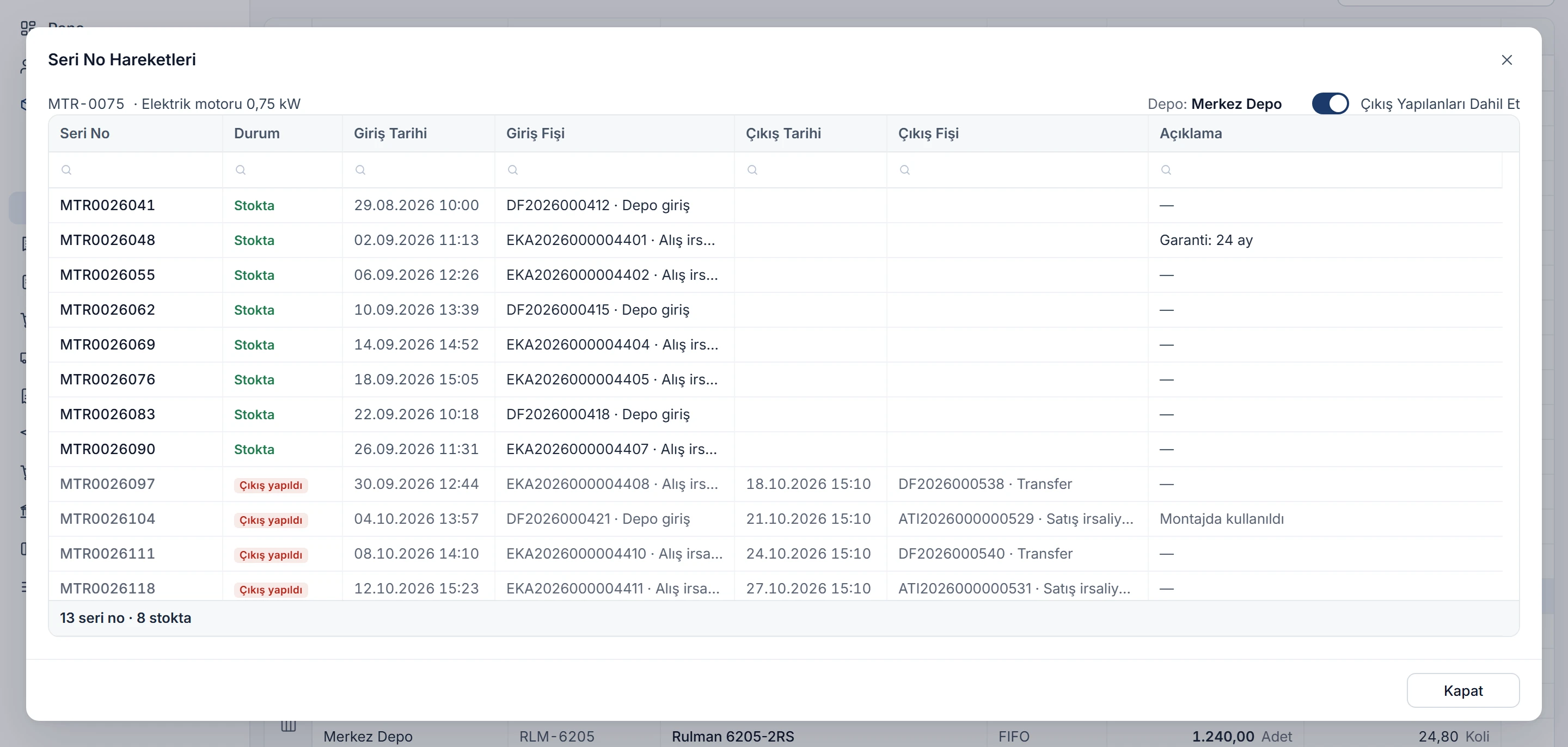
One by one, by serial number

For a serial-numbered product you see whether each number is in stock or gone, and which voucher brought it in and took it out.

  • Scan and press Enter, or add a batch from a series.
  • A serial number that is in stock cannot be entered twice.
  • One switch adds the numbers that went out to the list.
Serial number movements window: serial numbers of an electric motor, in stock or out, with entry and exit vouchers Enlarge image

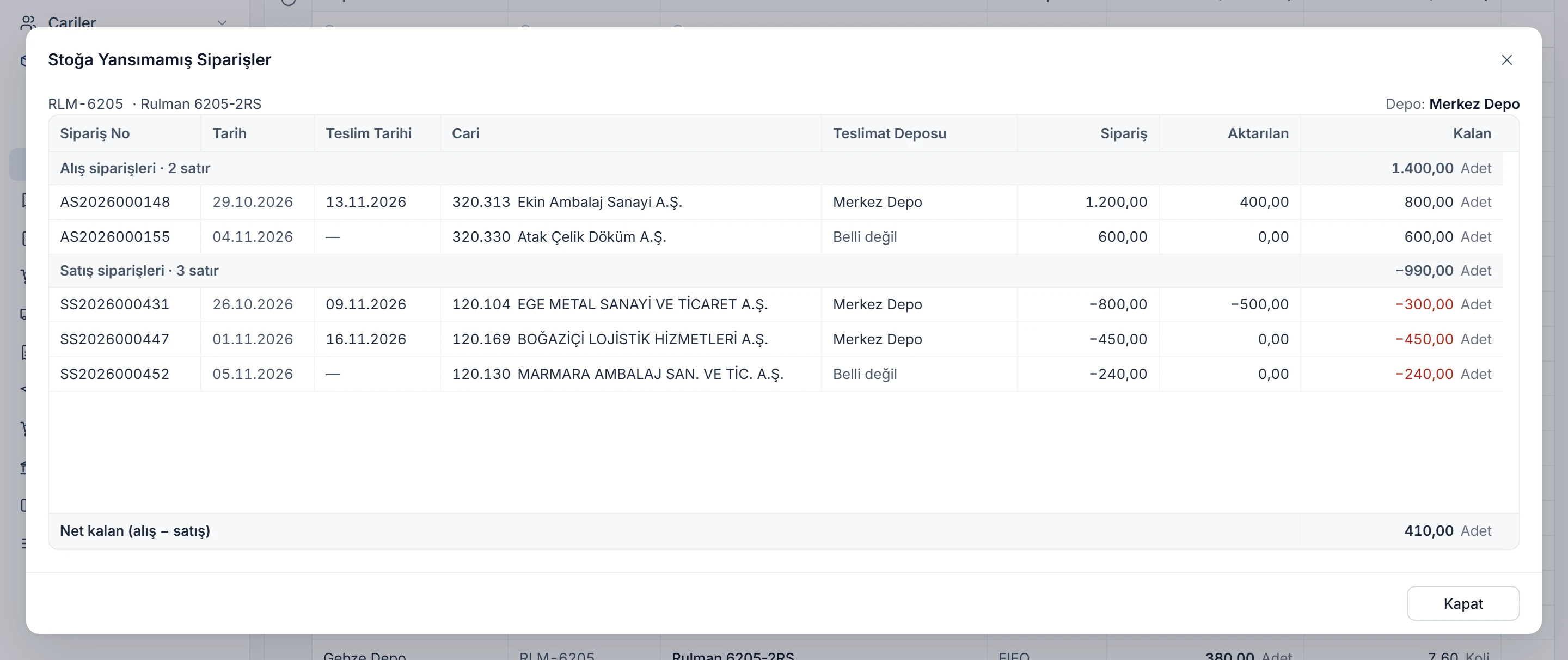
What will the orders bring?

The orders-not-yet-in-stock window shows what is left of a product’s purchase and sales orders that has not been moved to a delivery note yet, with the net remainder at the bottom.

  • Orders whose delivery warehouse is not set yet appear as “Not set”.
  • Orders rejected in approval are not counted.
  • Double-click an order to open it.
Orders not yet in stock window: a bearing’s purchase and sales orders, quantities moved and remaining, net remainder Enlarge image

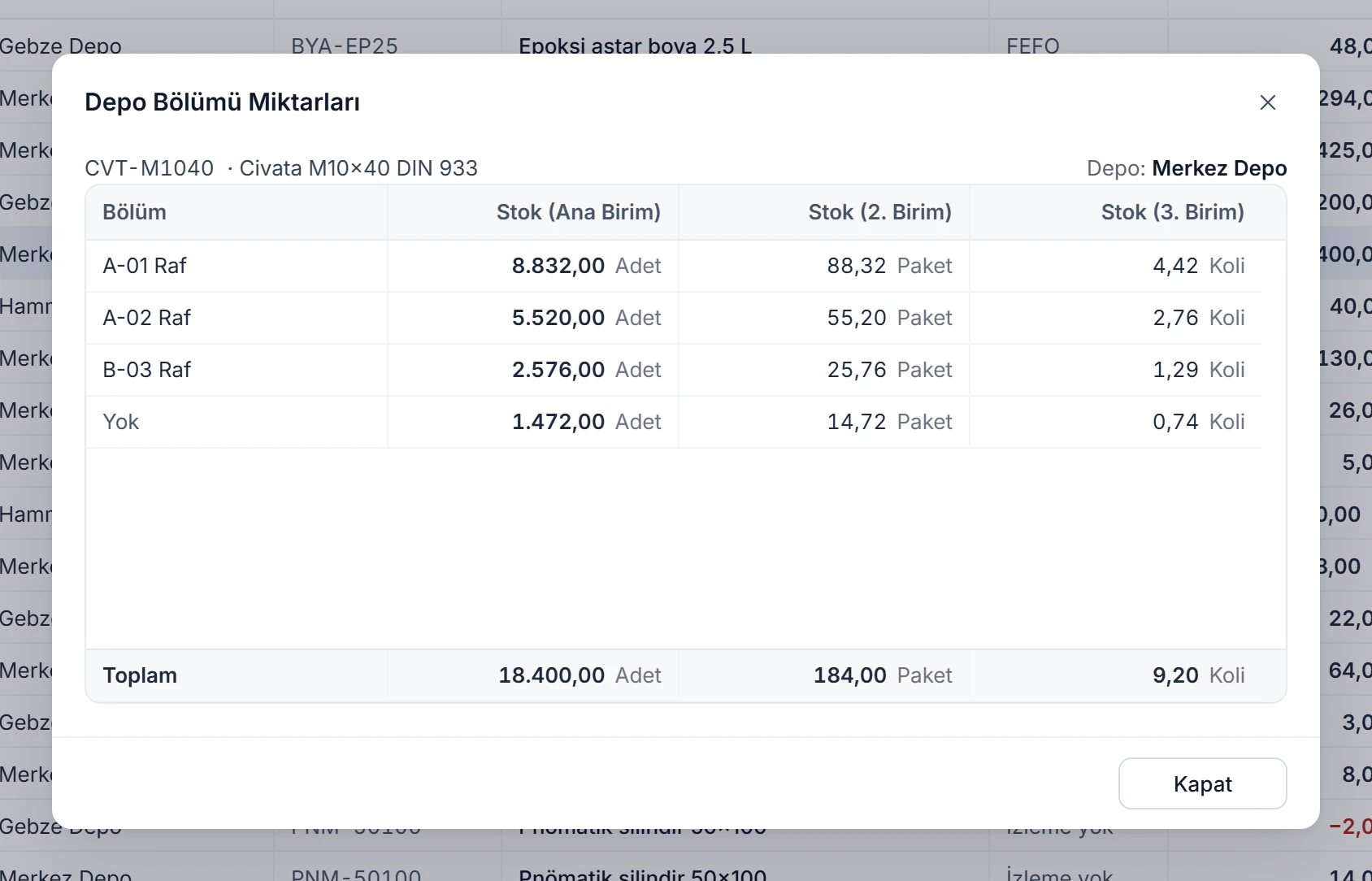
Shelf by shelf, in three units

See a product’s stock in a warehouse by section. Every quantity is shown in its main unit and, if defined, in its second and third units, for example pieces, packs and boxes.

  • Unit ratios come from the product card; a unit without a ratio shows “—”.
  • Movements without a section are summed up in a “None” row.
  • Negative stock is red, zero is faded.
Warehouse section quantities window: a bolt’s stock in the main warehouse by shelf, in pieces, packs and boxes Enlarge image

More stock management features

Warehouses and locations
Define your warehouses and the shelves, sections and bins inside them.
Transfers
Move stock between warehouses with a transfer voucher; lots and serial numbers move along.
Stock counts
Post count differences to stock with count surplus and count shortage vouchers.
Stock valuation
Value stock at purchase, sales, first-in or last-out prices to see how much you have invested.
Turnover
Report how long products stay in stock on average and plan offers for slow movers.
Group codes
Track products in five groups such as brand, model and origin, and query equivalent products together.

Manage your stock in detail.

Knowing your stock in detail directly affects profitability and operations. Noyax shows which product is in which warehouse, on which shelf and in what quantity, at any moment.

  1. Define warehouses

    Define your warehouses and their locations such as shelves and sections.

  2. Choose a tracking method

    Choose no tracking, lot, FIFO, LIFO, FEFO or serial number for each product.

  3. Start with an opening voucher

    Enter your opening stock with lots and serial numbers on an opening voucher.

See your stock at any moment.

Try it free for 14 days. No credit card needed.